Zapier Automation Guide: Features, Pricing & Use Cases
What is Zapier and Why Does it Matter?
The Hidden Cost of Repetitive Work
Are you constantly switching between apps, copying data from one platform to another, or manually updating spreadsheets and CRM systems? For many businesses, these repetitive tasks quietly consume hours every week. What seems like a small manual step copying leads from a form into a CRM or sending follow-up emails can quickly add up to significant lost productivity.
Studies show that knowledge workers spend a large portion of their day on repetitive digital tasks such as data entry, file transfers, and app switching. These inefficiencies don’t just waste time they increase the risk of errors, slow down operations, and prevent teams from focusing on strategic work that actually drives growth.
The Solution: Automating Workflows with Zapier
This is where Zapier comes in. Zapier is a powerful automation platform designed to connect the apps your business already uses. Instead of manually moving information between tools like Gmail, Slack, Google Sheets, CRMs, project management software, and marketing platforms, Zapier automates the process through simple workflows called Zaps. With Zapier, businesses can automatically:
Send leads from forms directly into their CRM
Notify teams in Slack when important updates occur
Create tasks in project management tools from emails
Sync customer data across multiple platforms
By acting as the bridge between thousands of applications, Zapier eliminates repetitive tasks and ensures your systems work together seamlessly.
Why Automation Matters More Than Ever
In modern businesses, teams rely on dozens of tools to manage marketing, sales, operations, and customer support. While these tools are powerful individually, they often operate in silos. Without automation, employees must manually connect these systems an inefficient and error-prone process.
Automation changes this entirely. By connecting apps and automating workflows, businesses can:
Reduce manual data entry
Minimize human error
Accelerate internal processes
Improve team productivity
Focus more time on high-value work
In other words, the cost of not automating can be significant lost time, slower growth, and frustrated teams.
What You’ll Learn in This Guide
In this comprehensive guide, we’ll break down everything you need to know about Zapier, including:
What Zapier is and how it works
The core purpose of Zapier for business automation
Key features that make Zapier powerful
Zapier pricing plans and how to choose the right one
Practical examples of automation workflows
The real ROI businesses gain from automation
By the end of this guide, you’ll have a clear understanding of how Zapier can streamline your operations, eliminate repetitive work, and become an essential tool for modern business productivity.
The Core Purpose of Zapier Bridging the App Gap Understanding the Problem: Disconnected Business Tools
Modern businesses rely on multiple digital tools to manage operations CRM systems, email platforms, project management software, spreadsheets, and marketing tools. While each application performs its own function well, they rarely communicate with one another naturally. This creates what is often called “app silos.”
For many teams, this results in:
Repetitive manual data entry between tools
Important updates being missed or delayed
Fragmented workflows that slow down productivity
Employees spending hours switching between applications
For example, a sales lead captured in a website form may need to be manually copied into a CRM, then added to an email list, and finally shared with a sales team in a messaging platform. These small tasks accumulate quickly, creating significant operational inefficiencies.
Introducing Zapier’s Solution
This is where Zapier becomes valuable. In simple terms, Zapier is an online automation platform that connects your favorite apps and automates repetitive workflows without requiring coding.
According to Zapier’s official documentation, the platform’s goal is to help businesses “automate work by connecting apps and moving information automatically.” Instead of employees manually transferring data between tools, Zapier handles those processes automatically in the background.
You can think of Zapier as:
A digital bridge connecting different software tools
A universal translator allowing apps to communicate
Workflow automation glue holding your systems together
With thousands of integrations available, Zapier enables businesses to create seamless workflows across marketing, sales, finance, customer support, and operations.
Key Zapier Concepts Explained
Understanding a few core concepts makes Zapier much easier to use.
1. Zaps
A Zap is an automated workflow that connects two or more apps.
It tells the system:
“When something happens in one app, automatically perform an action in another.”
Example workflow:
When a new lead is captured → automatically add them to a CRM and send a welcome email.
Each Zap removes manual steps and ensures processes run consistently.
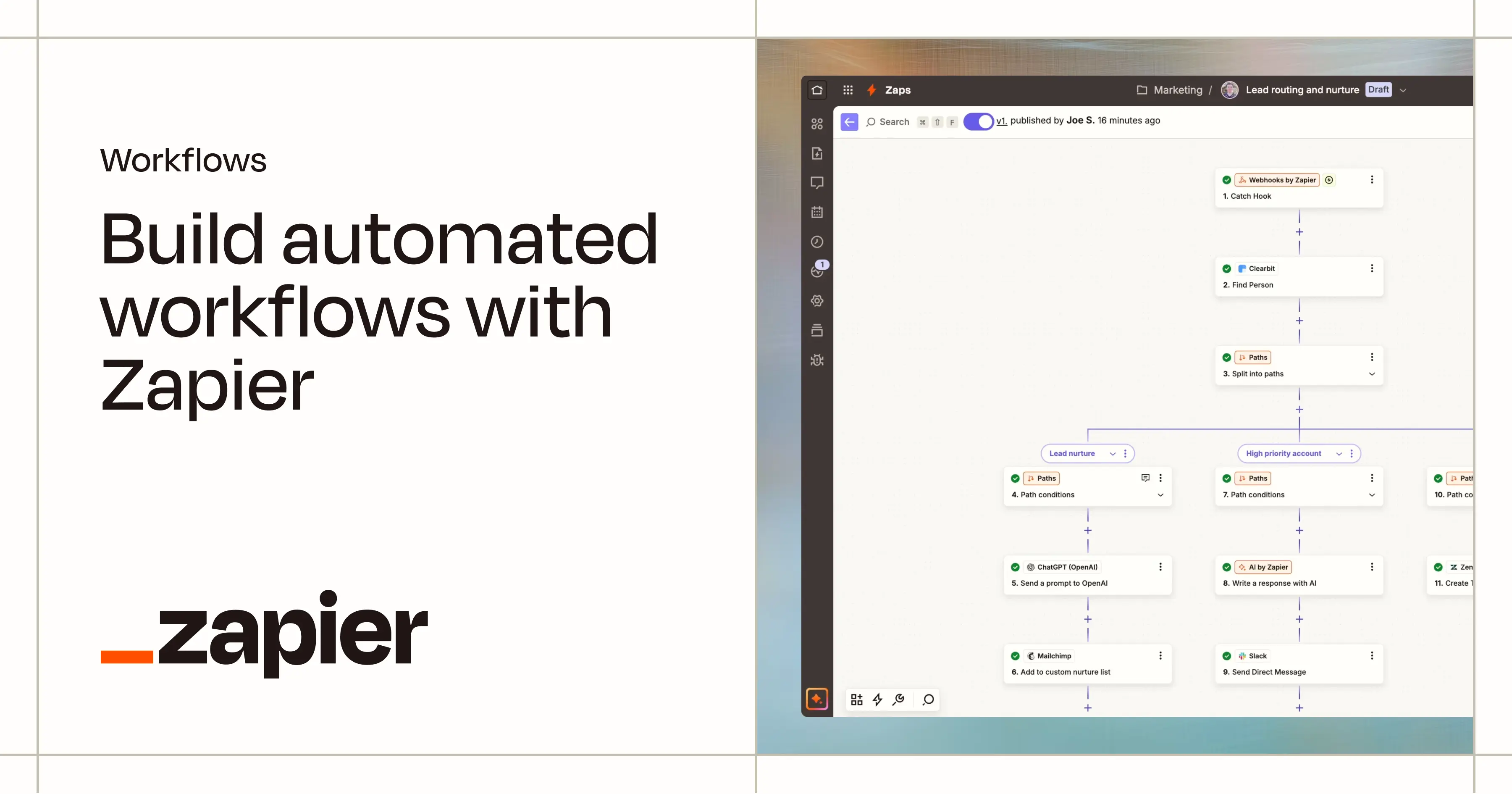
Simple workflow diagram: App A → Zapier → App B
2. Triggers
A Trigger is the event that starts a Zap.
It answers the question:
“When should this automation begin?”
Common trigger examples include:
New email received in Gmail
New row added in Google Sheets
New form submission from a website
New deal created in a CRM
Once the trigger occurs, Zapier immediately runs the workflow.
An Action is what Zapier does after the trigger occurs.
It answers the question: “What should happen next?”
Examples of actions include:
Send a notification in Slack
Create a new contact in Salesforce
Add a task in a project management tool
Send an automated email to a customer
A single Zap can include multiple actions, allowing complex workflows to run automatically.
4. Tasks
A Task is counted every time a Zap successfully completes an action.
For example:
If a Zap adds a new lead to a CRM → 1 task
If it also sends a Slack message → another task
Tasks are important because Zapier pricing plans are largely based on the number of tasks used each month. Understanding your automation volume helps you select the right plan.
5. Apps
Zapier’s true strength comes from its large ecosystem of integrated applications. The platform connects with thousands of tools across many business categories, including:
Marketing Tools
Email marketing platforms
Social media schedulers
Lead generation tools
Sales & CRM
Customer relationship management systems
Sales pipeline tools
Productivity & Collaboration
Team messaging platforms
Project management software
Document management tools
Finance & Operations
Payment systems
Accounting platforms
Customer support software
Because Zapier integrates with such a wide variety of applications, businesses can automate workflows across almost every department.
Why This Matters for Businesses
By bridging the communication gap between apps, Zapier allows organizations to:
Eliminate repetitive manual tasks
Reduce human error in data transfer
Improve operational speed
Free employees to focus on higher-value strategic work
Instead of managing disconnected tools, businesses can create automated systems that run quietly in the background, keeping teams productive and workflows consistent.
Key Features & Capabilities: What Can Zapier Actually Do?
Zapier is often introduced as a simple automation tool, but its real power lies in the advanced workflows it enables. Beyond basic two-app connections, Zapier allows businesses to build intelligent automation systems that manage data, trigger multiple actions, and coordinate complex workflows across multiple tools. Let’s explore the key features that make Zapier a powerful automation platform.
Multi-Step Zaps
A Multi-Step Zap allows a single trigger to initiate multiple actions across different apps. Instead of connecting just two applications, a multi-step automation can coordinate an entire workflow.
Example workflow:
Trigger:
New lead captured in Facebook Ads
Actions:
Add the lead to a CRM
Send a welcome email to the lead
Notify the sales team in Slack
This type of automation ensures that every lead is processed instantly and consistently, without requiring manual input from the team. Multi-step Zaps are especially useful for sales funnels, marketing campaigns, and onboarding workflows.
Filters
Filters allow you to control when a Zap should continue running. Instead of executing every time a trigger occurs, filters introduce conditional logic so automation only runs when specific criteria are met.
For example:
Trigger: New email received in Gmail Filter condition: Email subject contains the word “urgent” Action: Send an alert to the operations team in Slack.
Expert Tip:
Using filters effectively helps create smarter automations that prevent unnecessary actions and reduce task usage.
Paths (Conditional Logic)
Paths take conditional automation a step further by allowing different actions depending on different conditions. Think of Paths as “if–then” decision branches within a workflow.
Example automation: Trigger: New lead submitted on website
Path A:
If lead source = Referral → Add contact to VIP customer list
Path B:
If lead source = Website form → Add contact to General marketing list With Paths, businesses can automate segmentation, lead routing, and customer journeys within a single Zap.
Schedules
The Schedule feature allows Zaps to run at specific time intervals instead of relying on an external trigger. This is useful for automations that need to run regularly.
Example:
Every day at 9 AM → Generate a summary of new tasks in Asana and send the report to Slack.
Scheduled automations are often used for:
Daily performance reports
Weekly marketing summaries
Automated reminders for teams
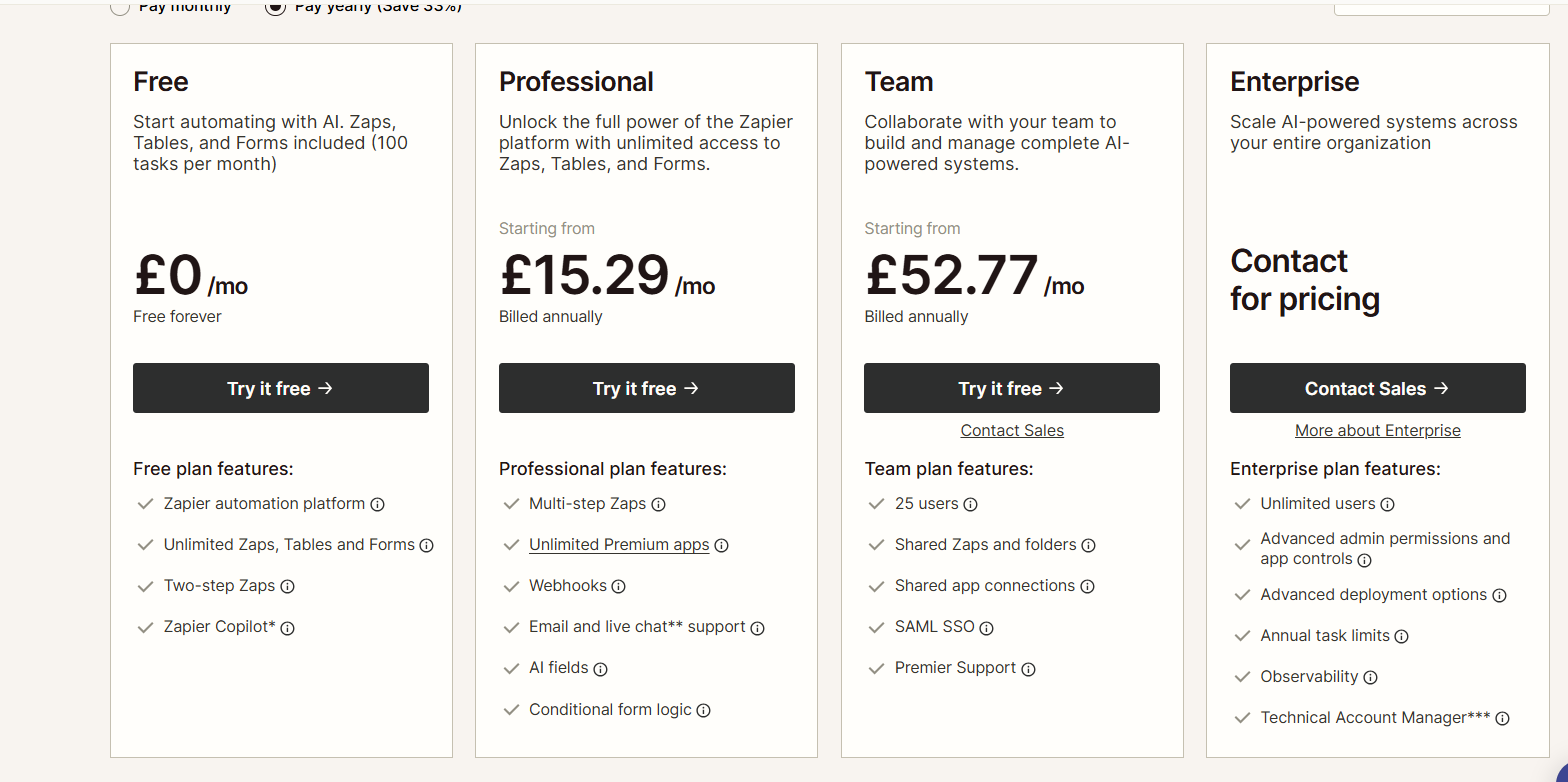
Detailed Breakdown of Zapier Pricing Plans
Zapier offers several pricing tiers designed to support individuals, small businesses, and large enterprises with different automation needs.
Free Plan
The Free plan allows users to explore Zapier’s automation capabilities without any upfront investment.
Key characteristics typically include:
Limited monthly task allowance
Single-step Zaps only (one trigger and one action)
Access to basic app integrations
Standard update intervals
Best suited for:
Individuals exploring automation
Freelancers testing simple workflows
Businesses experimenting with Zapier before scaling
While the free plan is useful for learning the platform, most businesses eventually upgrade to unlock more advanced automation capabilities.
Starter Plan
The Starter plan introduces more powerful automation features for businesses beginning to rely on workflows.
Typical benefits include:
Higher monthly task limits
Multi-step Zaps (multiple actions from one trigger)
Access to premium apps
Faster automation update intervals
Best suited for:
Solopreneurs
Small businesses
Marketing professionals automating lead capture and notifications
For many small teams, the Starter plan offers the best balance between affordability and functionality.
Professional Plan
The Professional plan is designed for organizations running more complex automations across multiple tools.
Key features typically include:
Significantly higher task limits
Access to unlimited premium app integrations
Advanced automation tools such as filters and conditional paths
Faster workflow execution
These features allow businesses to create intelligent automation systems rather than simple workflows.
Best suited for:
Growing companies
Marketing teams managing multiple campaigns
Businesses handling large volumes of leads or customer data
Team Plan
The Team plan expands Zapier’s capabilities to support collaboration between multiple users.
Features generally include:
High task volumes
Shared workspaces for teams
Team-level user management and permissions
Centralized automation management
These features allow departments to coordinate automation workflows while maintaining oversight and security.
Best suited for:
Departments within larger organizations
Small to medium-sized businesses with multiple team members
Teams running cross-department automation systems
Company Plan
The Company plan is designed for large organizations with enterprise-level automation requirements.
Enterprise-grade capabilities typically include:
The highest task limits available
Advanced security features such as SAML / Single Sign-On (SSO)
Dedicated support options
Advanced admin controls and governance tools
These capabilities help enterprises manage automation across many departments while maintaining strict security standards.
Best suited for:
Large companies
Enterprises with complex workflows
Organizations requiring advanced compliance and security features
Company Plan
The Company plan is designed for large organizations with enterprise-level automation requirements.
Enterprise-grade capabilities typically include:
The highest task limits available
Advanced security features such as SAML / Single Sign-On (SSO)
Dedicated support options
Advanced admin controls and governance tools
These capabilities help enterprises manage automation across many departments while maintaining strict security standards.
Best suited for:
Large companies
Enterprises with complex workflows
Organizations requiring advanced compliance and security features
Several variables determine how much a business will ultimately spend on Zapier.
Task Volume
The number of tasks your automations run each month is the single biggest factor affecting cost.
For example:
A simple workflow used occasionally may consume very few tasks.
A high-volume marketing funnel processing thousands of leads may require significantly more tasks. Understanding your automation volume helps ensure you select the right plan.
Multi-Step Zaps and Advanced Features
More sophisticated automation tools such as:
Multi-step workflows
Filters
Conditional paths
Advanced logic
are only available on paid plans. These features are essential for businesses running complex operational workflows
Multi-Step Zaps and Advanced Features
More sophisticated automation tools such as:
Multi-step workflows
Filters
Conditional paths
Advanced logic
are only available on paid plans. These features are essential for businesses running complex operational workflows.
Annual vs Monthly Billing
Zapier typically offers discounts for annual billing compared to paying month-to-month. Businesses confident in their automation strategy often choose annual billing to reduce overall costs.
Avoiding Unexpected Costs
One concern businesses often have is the possibility of exceeding task limits. To prevent unexpected charges:
Expert Tip:
Regularly monitor task usage within your Zapier dashboard. Understanding which workflows consume the most tasks can help optimize automation and avoid unnecessary overages.
Businesses should also periodically review their workflows to ensure they remain efficient and aligned with operational needs.
Avoiding Unexpected Costs
One concern businesses often have is the possibility of exceeding task limits. To prevent unexpected charges:
Expert Tip:
Regularly monitor task usage within your Zapier dashboard. Understanding which workflows consume the most tasks can help optimize automation and avoid unnecessary overages.
Businesses should also periodically review their workflows to ensure they remain efficient and aligned with operational needs.
The Real Value of Zapier
While Zapier does involve a subscription cost, it’s important to consider the return on investment (ROI).
By automating repetitive tasks, businesses can:
Save hundreds of hours of manual work
Reduce operational errors
Improve response times for customers and leads
Increase overall team productivity
For many organizations, the time saved through automation far outweighs the cost of the platform.
Choosing the Right Zapier Plan for Your Needs
A Simple Framework to Make the Right Decision
With several pricing tiers available, selecting the right plan for Zapier can feel overwhelming. The key is to evaluate your business needs using a structured decision framework.
Instead of focusing only on price, businesses should assess automation volume, workflow complexity, and team requirements.
Here are the four main factors that should guide your decision.
2. Evaluate the Complexity of Your Automations
Next, consider how advanced your workflows need to be. Basic automations may only require a simple trigger and action, while more advanced processes rely on additional features such as:
Multi-step workflows
Conditional logic using filters and paths
Delays and scheduling
Custom data formatting
Code-based logic for advanced automation
Businesses running more complex workflows typically need Professional-level features or higher.
3. Consider the Number of Users
Are you building automations just for yourself, or will multiple team members need access?
If automation will be used across departments such as sales, marketing, and operations, then collaboration features become important. For example, teams may want to share app connections or manage permissions across users.
Larger teams often benefit from Zapier plans that support team workspaces and centralized automation management.
4. Check Your App Integration Requirements
Not all apps are available on every plan. Many advanced tools such as enterprise CRMs like Salesforce require access to premium app integrations. If your business depends on premium tools, you will likely need a paid Zapier plan.
5. Align With Your Budget
Finally, automation investments should align with your overall business budget. Although Zapier has a subscription cost, automation often produces strong ROI by:
Saving employee time
Reducing operational errors
Accelerating internal workflows
Improving response times for customers and leads
For many organizations, even small automations can quickly pay for themselves in productivity gains.
Persona-Based Zapier Plan Recommendations
Different types of businesses have different automation needs. Below are common scenarios that help illustrate which plans are typically the best fit.
Scenario 1: The Solopreneur or Freelancer
A freelancer, consultant, or solo business owner typically runs a smaller number of automations.
Common use cases include:
Capturing leads from website forms
Adding contacts to email lists
Sending notifications when new clients inquire
In these cases, the Starter or Professional plan often provides enough tasks and flexibility without unnecessary complexity.
Scenario 2: The Growing Small Business
As businesses grow, they often start connecting multiple operational tools together.
Common automations may include:
Updating CRM records automatically
Routing support tickets
Syncing marketing leads across platforms
Notifying teams about new deals or tasks
These workflows frequently require multi-step automation and conditional logic, making the Professional or Team plans a better fit.
Real-World Problem/Solution Scenarios with Zapier
Turning Automation into Practical Business Value
Many businesses understand the idea of automation but struggle to identify practical use cases that improve their daily operations. The real power of Zapier becomes clear when you see how it solves specific workflow problems.
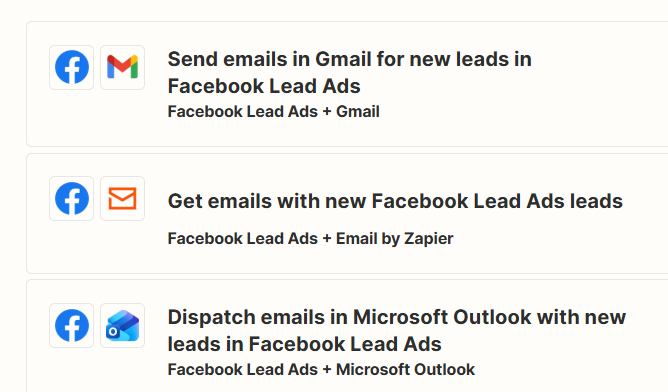
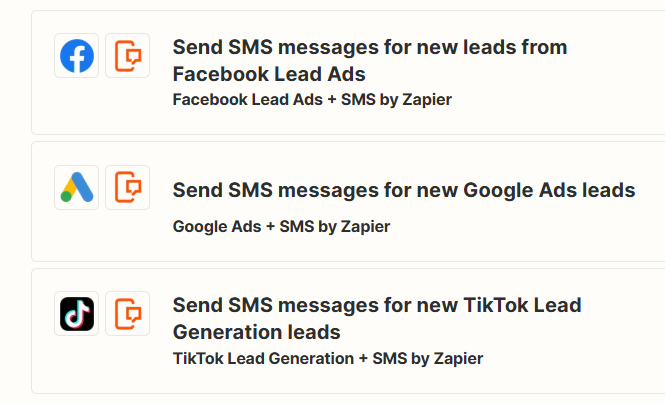
Scenario 1: Lead Nurturing & Sales Automation
Marketing teams often generate leads through advertising platforms, landing pages, or forms. However, when this data is transferred manually between systems, it causes several issues:
Delayed responses to new leads
Manual data entry errors
Missed opportunities due to slow follow-ups
In competitive markets, even a few minutes of delay can significantly reduce conversion rates.
Zapier Automation Solution
Trigger:
New lead generated from Facebook or Google Ads
Actions:
Add the lead to a CRM such as Salesforce or HubSpot
Add the lead to an automated email sequence in Mailchimp or ActiveCampaign
Send an instant notification to the sales team in Slack
Business Benefits
Faster lead response times
Reduced manual data entry
Improved lead nurturing
Higher conversion rates
Automation ensures that every lead is processed immediately, allowing sales teams to focus on closing deals rather than managing data.
Scenario 2: Customer Support Efficiency
Customer support teams often manage large volumes of emails and support tickets. Without automation, important issues can get buried in inboxes, leading to slow response times and frustrated customers.
Zapier Automation Solution
Trigger:
New support ticket created in Zendesk
Actions:
Create a task for the support team in Asana or Trello
Log ticket details in Google Sheets for reporting
Send an automated confirmation email to the customer
Business Benefits
Organized support workflows
Better ticket tracking
Faster response times
Improved customer satisfaction
By automating the support process, teams can focus on resolving issues rather than managing incoming requests manually.
Scenario 2: Customer Support Efficiency
Customer support teams often manage large volumes of emails and support tickets. Without automation, important issues can get buried in inboxes, leading to slow response times and frustrated customers.
Zapier Automation Solution
Trigger:
New support ticket created in Zendesk
Actions:
Create a task for the support team in Asana or Trello
Log ticket details in Google Sheets for reporting
Send an automated confirmation email to the customer
Business Benefits
Organized support workflows
Better ticket tracking
Faster response times
Improved customer satisfaction
By automating the support process, teams can focus on resolving issues rather than managing incoming requests manually.
Scenario 4: Data Synchronization & Business Reporting
Many businesses operate across multiple platforms such as e-commerce systems, CRMs, and reporting tools. Without integration, data becomes scattered, making it difficult to maintain accurate reports.
Zapier Automation Solution
Trigger:
New order placed in Shopify
Actions:
Add a new row to Google Sheets
Update the customer record in a CRM
Add the customer to a targeted email segment in Mailchimp
Business Benefits
Centralized business data
Real-time reporting
Improved marketing segmentation
Better data-driven decisions
Automation allows businesses to keep all systems synchronized without manual updates.
Scenario 5: Project Management & Team Collaboration
When teams collaborate across multiple tools, tasks can easily fall through the cracks. Poor communication between departments often leads to missed handoffs and project delays.
Zapier Automation Solution
Trigger:
Task completed in Asana
Actions:
Create the next-stage task in Trello
Send a completion notification to a Slack channel
Business Benefits
Smooth project handoffs
Clear communication across teams
Improved workflow visibility
Faster project completion
By automating task transitions, teams ensure projects move forward without manual coordination or delays.
Why These Use Cases Matter
These examples highlight how Zapier transforms everyday workflows into automated systems that run in the background. Across departments from marketing and sales to customer support and operations automation helps businesses:
Eliminate repetitive tasks
Improve operational efficiency
Reduce errors
Free teams to focus on strategic work
In the next section, we’ll explore best practices for implementing Zapier successfully and maximizing the return on your automation investment.
Why These Use Cases Matter
These examples highlight how Zapier transforms everyday workflows into automated systems that run in the background.
Across departments from marketing and sales to customer support and operations automation helps businesses:
Eliminate repetitive tasks
Improve operational efficiency
Reduce errors
Free teams to focus on strategic work
In the next section, we’ll explore best practices for implementing Zapier successfully and maximizing the return on your automation investment.
The Advantages of Zapier
1. Ease of Use
One of Zapier’s biggest strengths is its user-friendly interface. Unlike many automation tools that require technical expertise, Zapier allows users to build workflows using a simple drag-and-drop system.
This means businesses can automate processes without writing any code.
Unique perspective:
Zapier makes advanced automation accessible to non-technical users. Many professionals refer to it as a tool that enables powerful automation without a single line of code.
For marketing teams, operations managers, and entrepreneurs, this accessibility dramatically lowers the barrier to automation.
Getting Started with Zapier: Your First Zap (Mini-Guide)
Overcoming the Initial Learning Curve
Many professionals hesitate to try automation because they assume the setup will be complicated. The good news is that Zapier is designed for non-technical users, meaning you can create your first automated workflow in just a few minutes.
The best way to build confidence is to start with a simple automation, then expand into more advanced workflows as you become comfortable with the platform.
Below is a straightforward mini-guide to creating your first Zap.
Getting Started with Zapier: Your First Zap (Mini-Guide)
Overcoming the Initial Learning Curve
Many professionals hesitate to try automation because they assume the setup will be complicated. The good news is that Zapier is designed for non-technical users, meaning you can create your first automated workflow in just a few minutes.
The best way to build confidence is to start with a simple automation, then expand into more advanced workflows as you become comfortable with the platform.
Below is a straightforward mini-guide to creating your first Zap.
Step 2: Choose Your Apps and Trigger
Next, decide which applications you want to connect.
For this example, we will create an automation between:
Google Sheets
Gmail
Trigger:
“New Spreadsheet Row” in Google Sheets.
This means every time a new row is added to your spreadsheet, the automation will start.
Visual suggestion:
Screenshot showing the Zapier interface where users select the trigger app and event.
Step 3: Connect Your Accounts
Zapier will now ask you to connect your accounts.
This step involves authorizing Zapier to access the apps you want to automate.
Typically this includes:
Logging into your account
Granting permission for Zapier to read or write data
This secure authorization allows Zapier to move information between apps automatically.
Step 4: Set Up Your Action
Now define what should happen after the trigger occurs.
In this example, the action will be:
Send Email in Gmail
Zapier will allow you to map data from your spreadsheet to your email fields.
For example:
Spreadsheet column Name → Email greeting
Spreadsheet column Email → Recipient address
Spreadsheet column Message → Email body
This means when a new row is added to your sheet, Zapier will automatically send a personalized email.
Step 5: Test Your Zap
Before activating the automation, Zapier allows you to test the workflow.
Testing ensures that:
Data flows correctly between apps
Email messages are generated properly
No errors occur in the workflow
Expert Tip:
Always test your Zaps using real sample data to verify that everything works as expected.
Testing is especially important when working with multi-step automations.
Step 6: Turn Your Zap On
Once the test is successful, the final step is simply to activate the Zap.
After turning it on, Zapier will monitor your trigger automatically. Every time the trigger occurs, the automation runs instantly.
Your first workflow is now live.
Expert Tip:
Start with simple automations and gradually expand into more advanced workflows. As you gain experience, you can begin using multi-step Zaps, filters, and conditional paths.
Zapier’s official documentation also offers extensive “Getting Started” guides that walk users through more advanced automation strategies.
Conclusion: Unlocking Your Business’s Automation Potential
Why Zapier Matters
Throughout this guide, we explored how Zapier helps businesses solve a common operational challenge: disconnected applications and repetitive manual tasks. By connecting thousands of apps and automating workflows, Zapier allows organizations to:
Eliminate repetitive processes
Reduce manual data entry errors
Improve operational efficiency
Free teams to focus on strategic work
Automation doesn’t just save time it creates more reliable and scalable business systems.
Automation as a Long-Term Business Investment
Automation should be treated as an evolving system rather than a one-time setup. Business processes change, tools evolve, and new opportunities for automation emerge.
Expert Tip:
Regularly review and refine your automations to ensure they continue delivering value.
Periodic optimization helps organizations:
Reduce unnecessary tasks
Improve workflow efficiency
Adapt to new tools and processes
Estimating Your Automation ROI
One powerful way to evaluate automation is by calculating the return on investment (ROI).
A simple ROI estimation might include:
Hours spent on manual tasks per week
Employee hourly cost
Time saved through automation
For example:
If automation saves 10 hours per week, that equates to over 500 hours per year a significant productivity gain.
Visual suggestion:
Concept mockup of a Zapier ROI calculator spreadsheet or dashboard that estimates time and cost savings.
Take the First Step
The best way to understand automation is to experience it firsthand.
Start small:
Identify one repetitive task in your workflow
Build a simple Zap
Observe how much time it saves
From there, you can gradually automate more processes and unlock even greater efficiency.
Start your automation journey today and transform the way your business operates.
